The Pre-requires are as follows.
1. Office 365 Subscription
2. Visual Studio 2015 (Professional/Community/Enterprise Edition)
With the pre-requisites ready, let us start with step by step
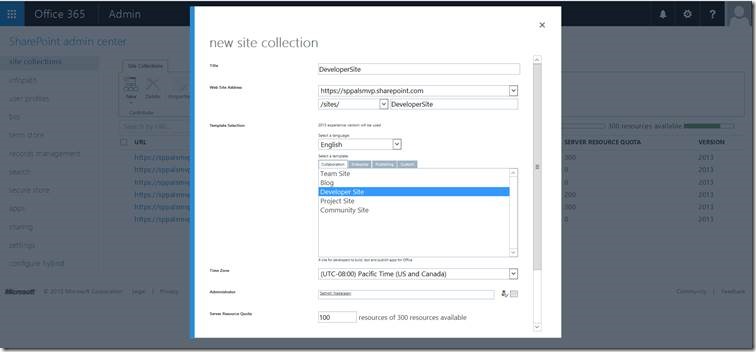
1. Login to the Office 365 and Create a Developer Site.
2. Login to the INETMGR and Create the Local IIS Sites.
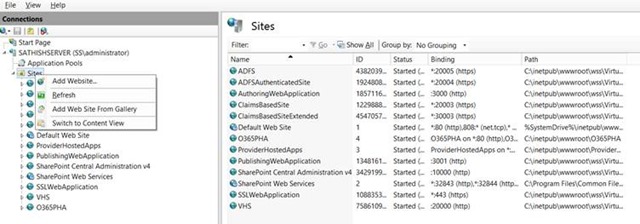
3. Click on “Add WebSite”
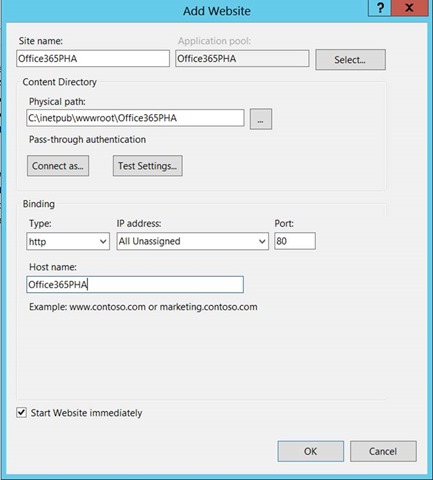
4. Add an Entry on the Hosts File. The Host File can be found in the path “c:\Windows\System32\Drivers\etc\”
5. The entry is as follows.
a. 127.0.0.1 Office365PHA
6. We need to Create a Self-Signed Certificate and Bind the Certificate to the newly created Web Site.
7. To Create a self-signed certificate, this time, we are going to use PowerShell Script with the –DNSName.
The Script is as
New-SelfSignedCertificate -DnsName Office365PHA -CertStoreLocation cert:\LocalMachine\My
8. Let us open the PowerShell window as Administrator.
9. Enter the above mentioned Script.
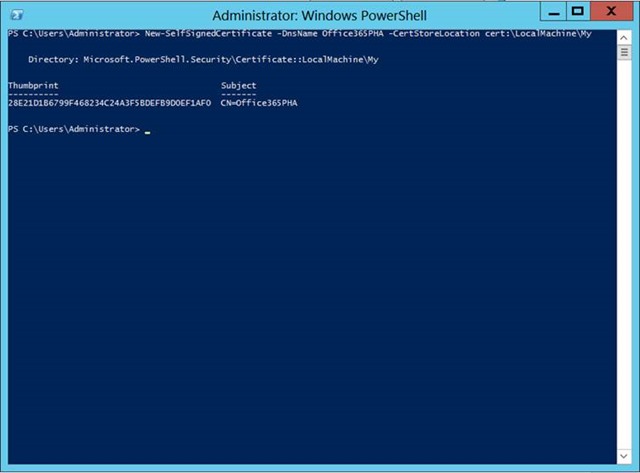
10. Once, the certificate got created, go to IIS and Server Certificates. We should be able to see the newly created certificate.
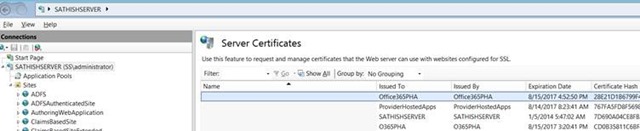
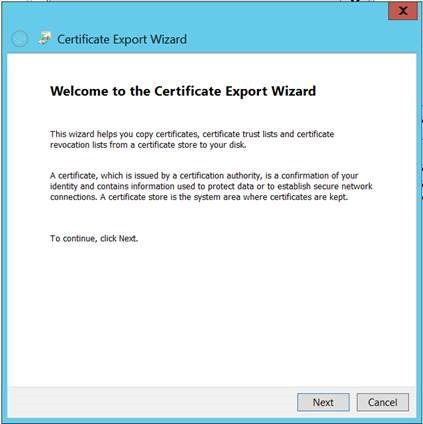
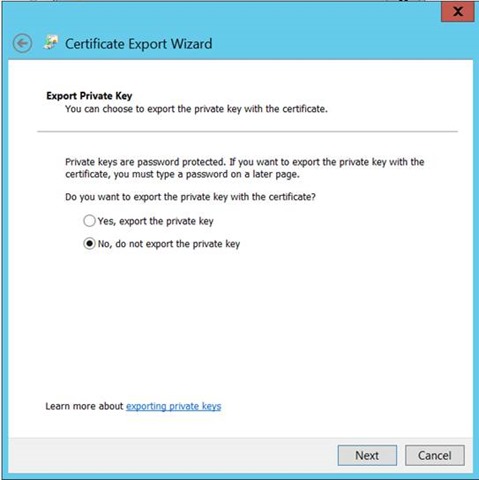
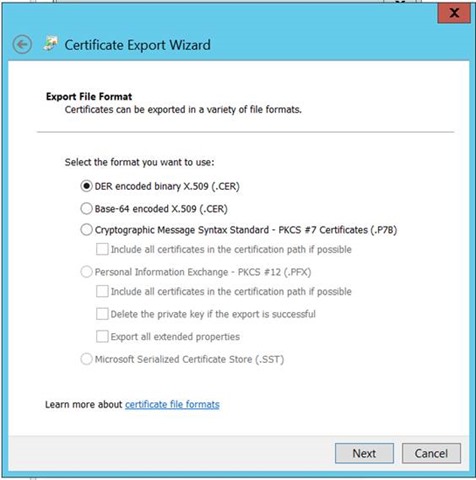
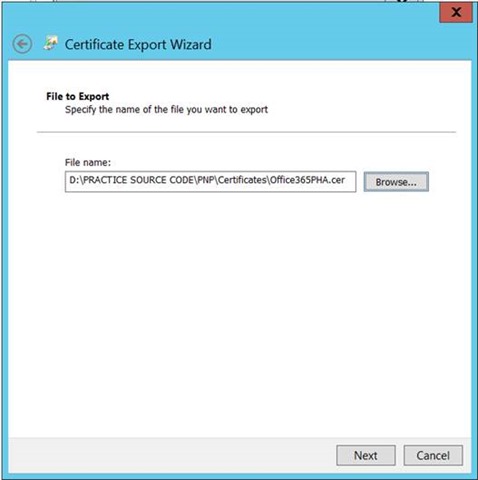
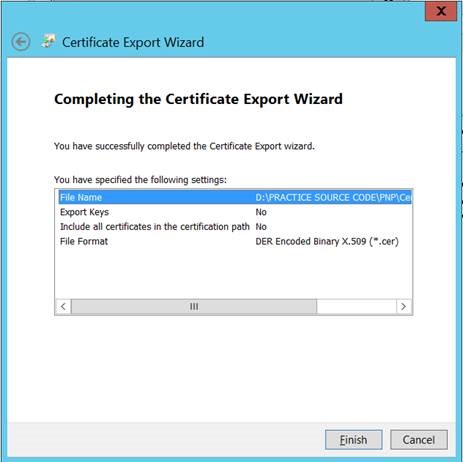
11. Double Click and Copy to File.
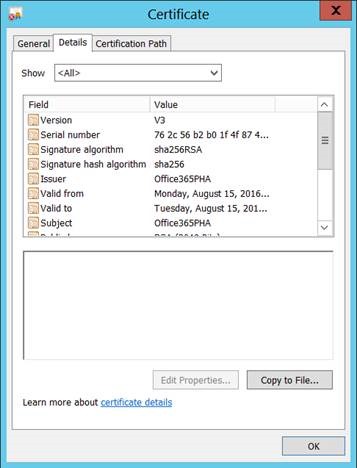
12. Copy the CER file to any location.
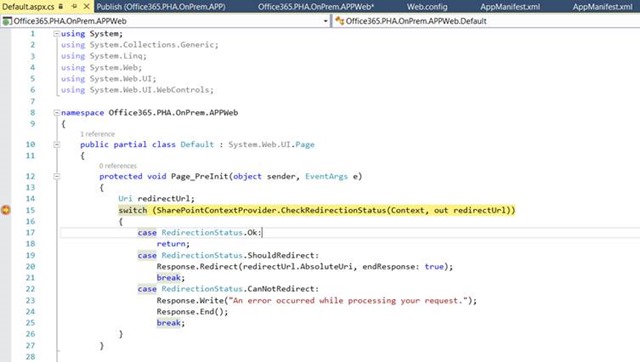
13. With this, let us open the Visual Studio to Create the APP Project.
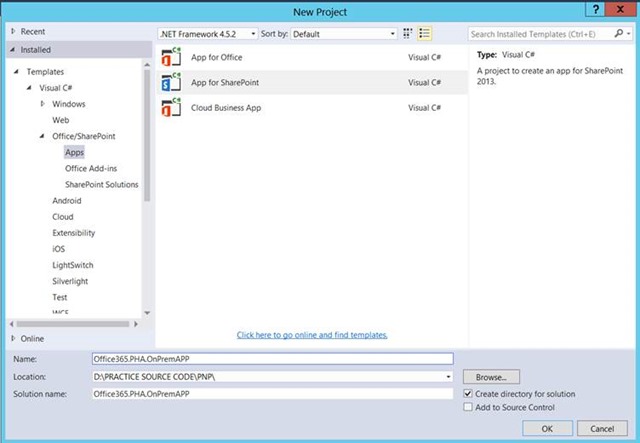
14. Select the App Type and enter the O365 URL.
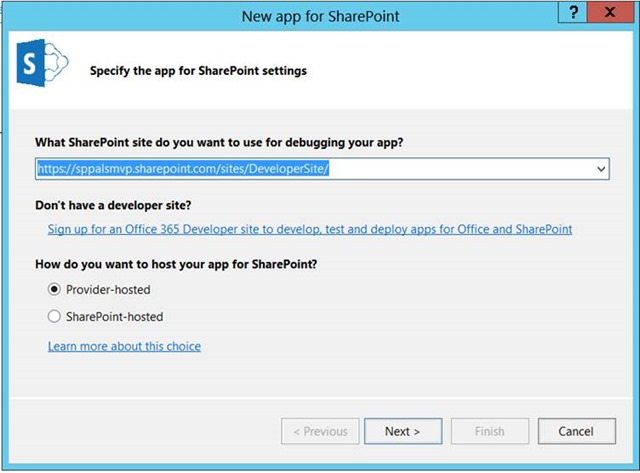
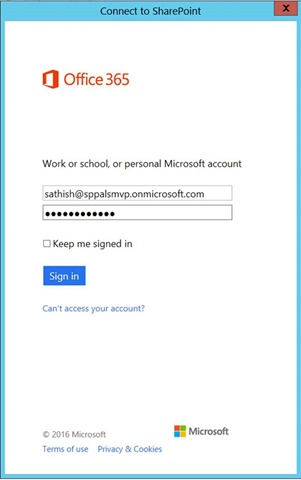
15. Enter the Credential.
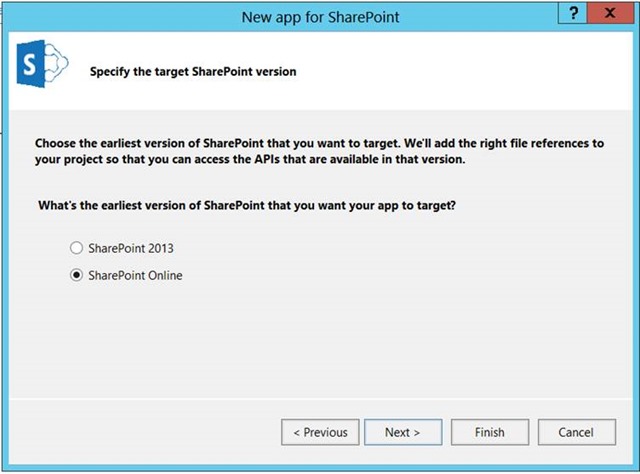
16. Select the Target Version of SharePoint.
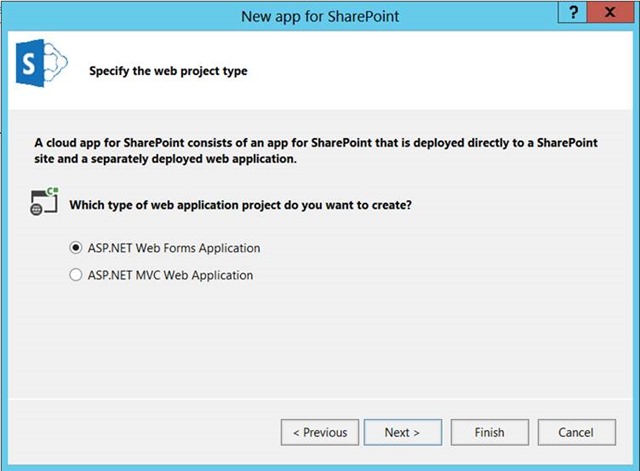
17. Select the Project Type.
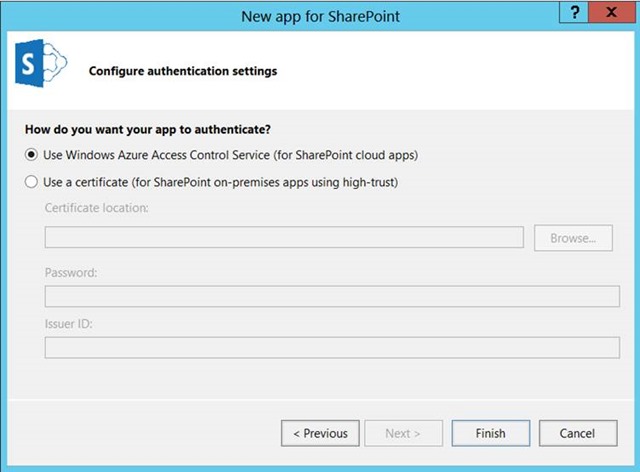
18. Select the Authentication Settings for the Low Trust.
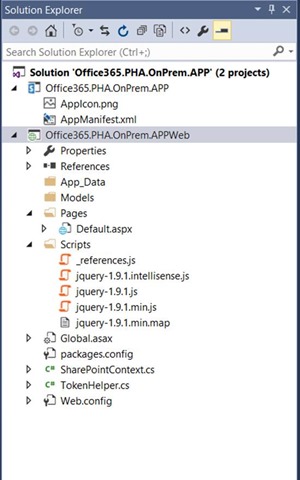
19. On Click of Finish, the Solution will get created. The Solution will looks like below.
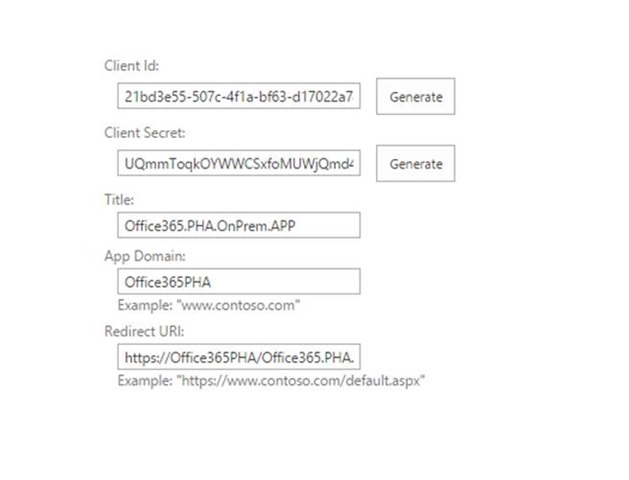
20. Now, Go to the APPREGNEW.aspx and register the Client ID and Client Secret ID. https://sppalsmvp.sharepoint.com/sites/DeveloperSite/_layouts/15/appregnew.aspx
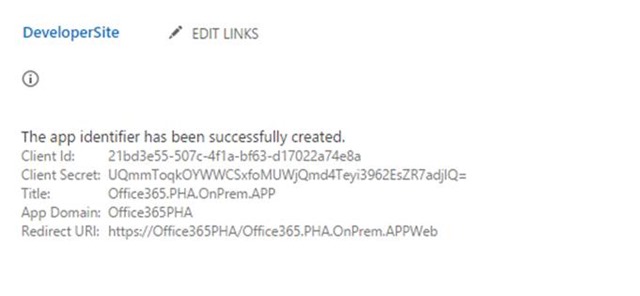
21. Once, got created, copy the clientid and client Secret ID to a notepad.
22. Now, let us go back to the IIS and the Certificates. Go to the location where we stored the Certificate exported.
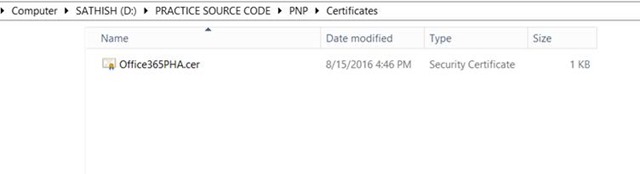
23. Right Click the Cer file. Click on Install Certificate.
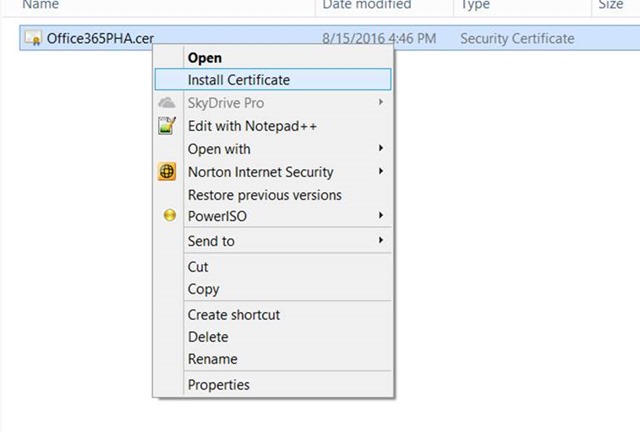
24. Follow the below Wizards.
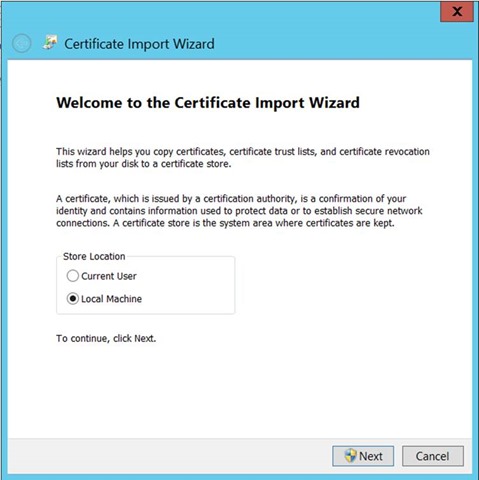
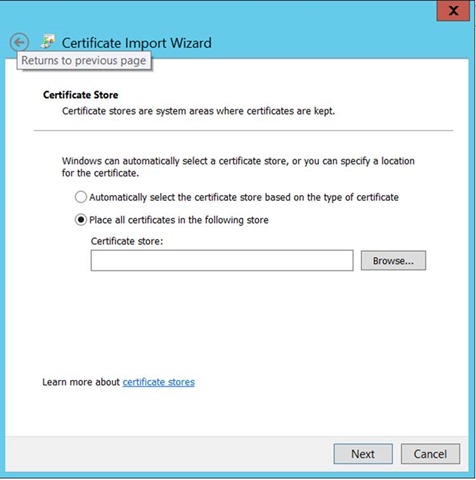
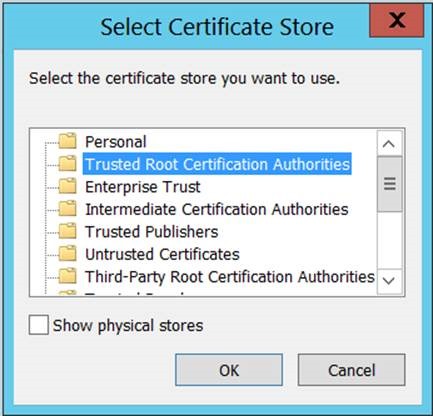
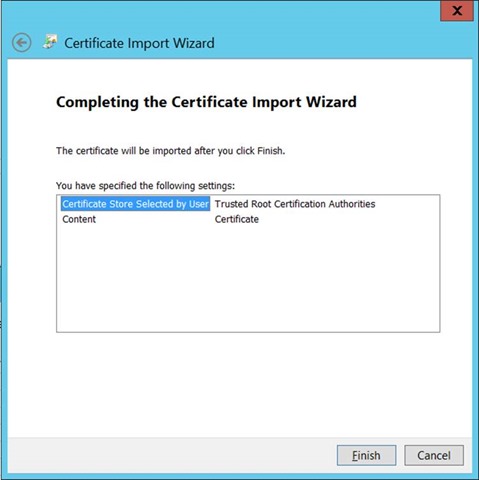
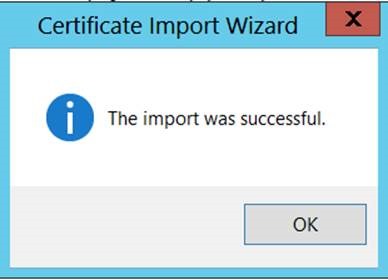
25. Now, Open the IIS and Select the WebSite which we created on the Earlier Steps.
26. Enable the Directory Browsing.
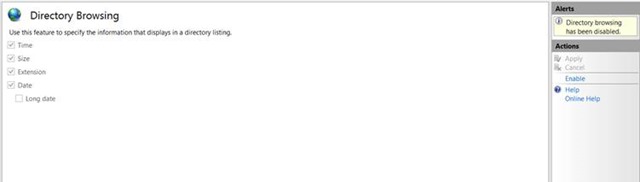
27. Right Click and Select Edit Bindings.
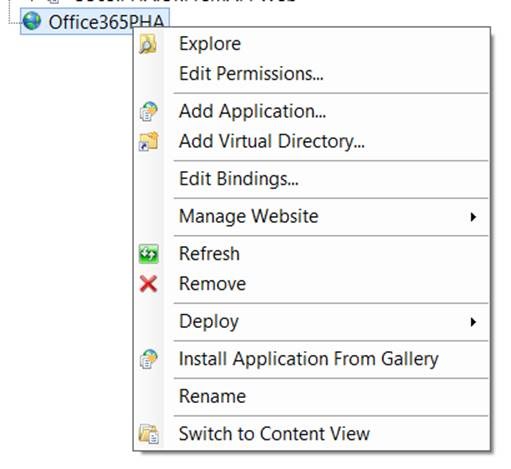
28. Add a Binding.
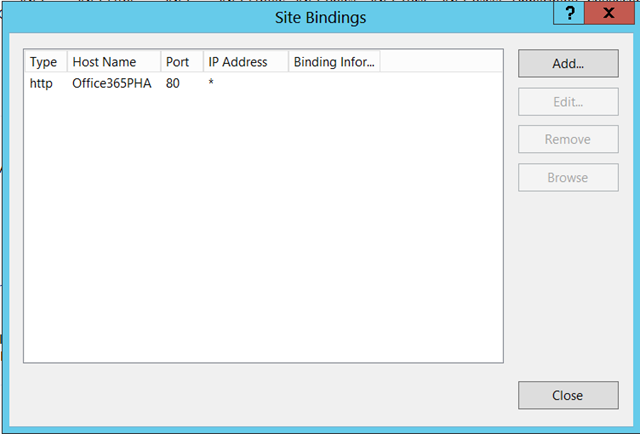
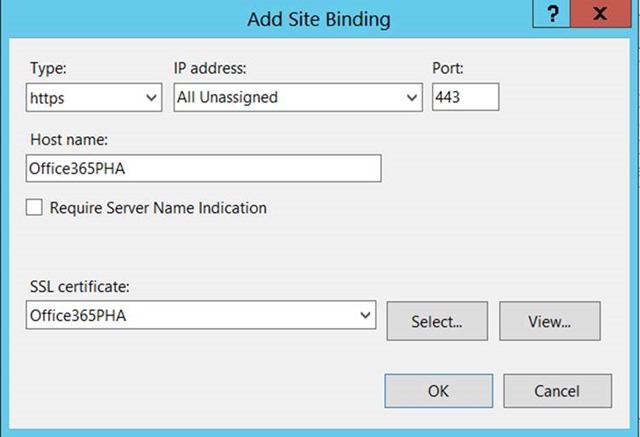
29. Now, launch the URLs, http://Office365PHA and https://Office365PHA and make sure that there is no exception. Though we have not provisioned the APP, but still we are making sure that the IIS does not have any issues.
30. Let us go back to the Visual Studio and update the AppManifest.xml.
31. The Updated XML will look like below.
1
2
3
4
5
6
7
8
9
10
11
12
13
14
15
16
17
18
19
20
21
22
23
| <?xml version="1.0" encoding="utf-8" ?> <!--Created:cb85b80c-f585-40ff-8bfc-12ff4d0e34a9--> <App xmlns="http://schemas.microsoft.com/sharepoint/2012/app/manifest" Name="Office365PHAOnPremAPP" ProductID="{cf118bb0-a286-4727-809b-0c15cb2bbe40}" Version="1.0.0.0" SharePointMinVersion="16.0.0.0" > <Properties> <Title>Office365.PHA.OnPrem.APP</Title> <StartPage>~remoteAppUrl/Pages/Default.aspx?{StandardTokens}</StartPage> </Properties> <AppPrincipal> <RemoteWebApplication ClientId="21bd3e55-507c-4f1a-bf63-d17022a74e8a" /> </AppPrincipal> <AppPermissionRequests AllowAppOnlyPolicy="false"> <AppPermissionRequest Scope="http://sharepoint/content/sitecollection/web" Right="FullControl" /> </AppPermissionRequests> </App> |
32. Update the Web.Config of the APP Web Project with the new ClientID and Client secret

33. Now, we are done. We need to publish the APP Web into the Local IIS. For that, follow the below steps.
34. Select the APPWeb and Click on Properties.
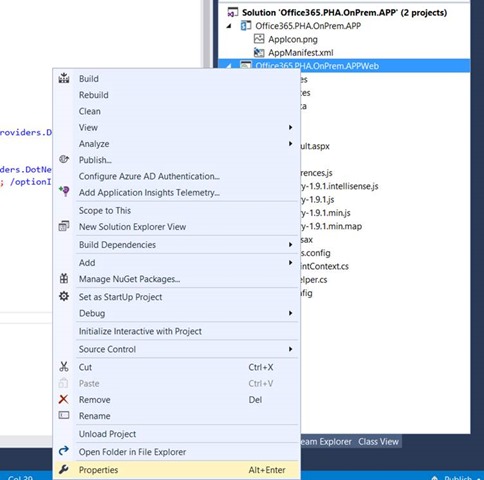
35. On the Web Tab, select the Local IIS and give the Redirect URI.
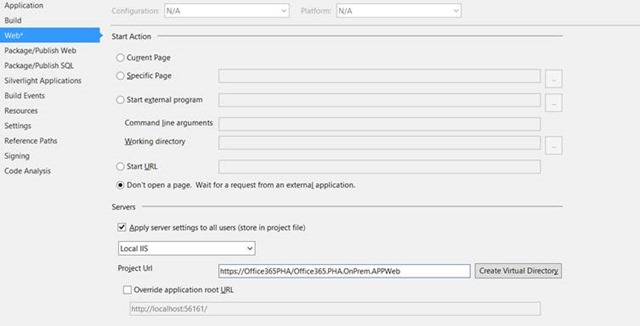
36. Click on “Create Virtual Directory”
37. Virtual Directory Got Created.
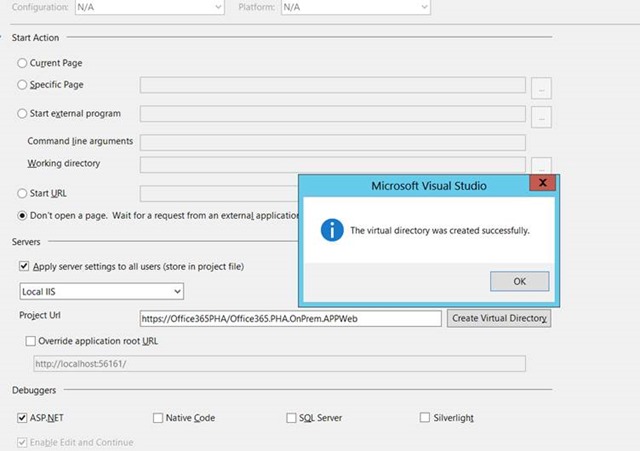
38. To Confirm, go to IIS and verify the Folder Structure.
39. In our case, it got created properly.

40. Now, we need to Publish the APP Project. For that, right click on the APPWeb and Click Publish. Note: Purposely, we are selecting the APPWeb, instead of the APP. Let me tell you in the below section, why we are doing this.
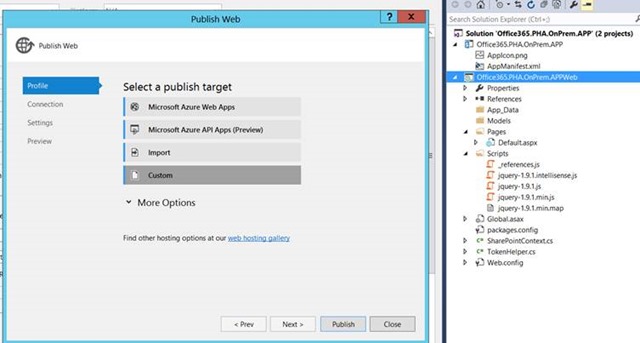
41. Click on Custom
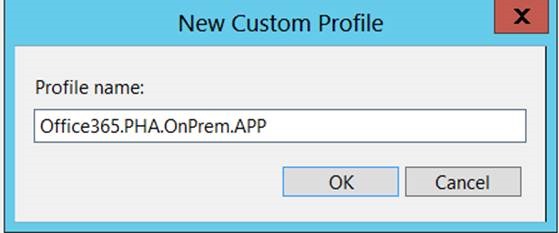
42. Give the Profile Name and Click OK.
43. On the Below Screen, don’t give anything. Simply Close.
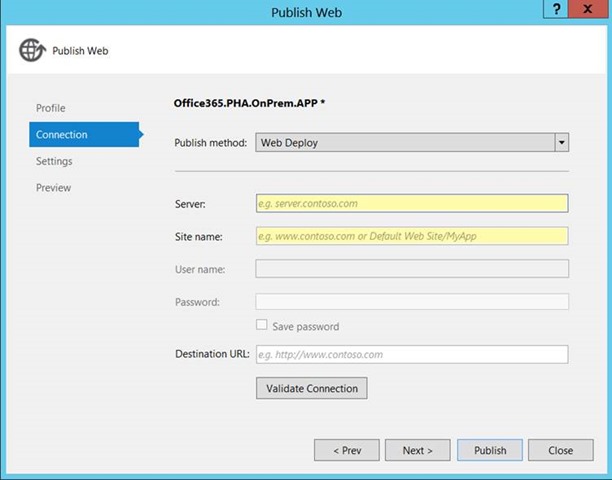
44. Save the Changes.
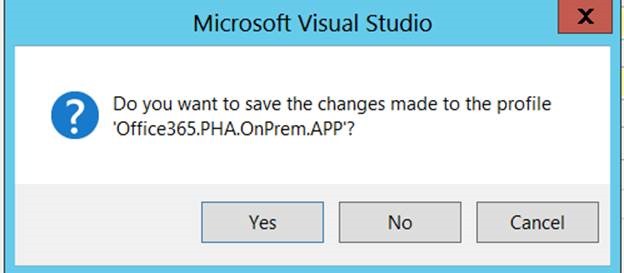
45. Now, Come back to the APP Project and Click Publish.
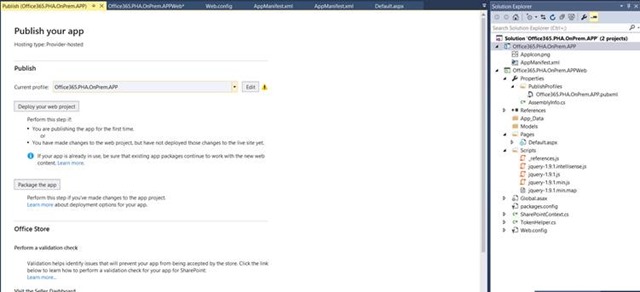
46. We will see the Profile which we created in the earlier step. Otherwise, the profile will not get created here. That’s why, I asked you to create the profile using the APPWeb Project and use the Profile in APP Project.
47. Click on Edit Profile and Enter the Client ID and the Client Secret properly.
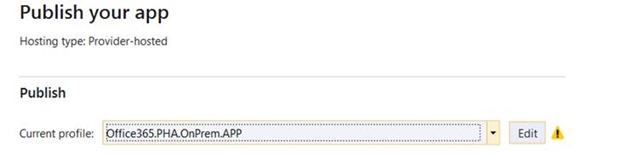
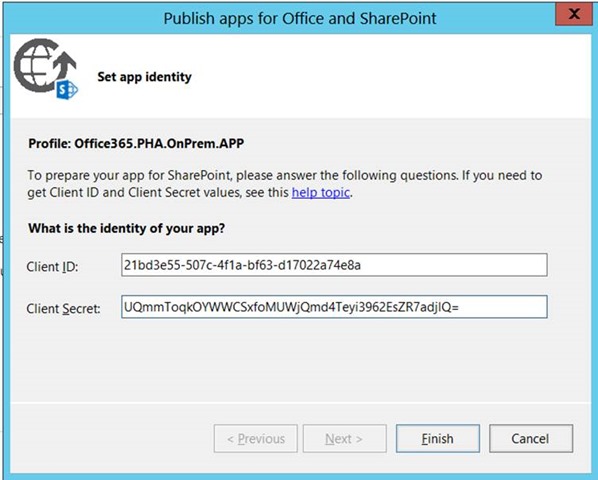
48. Now, the Warning near to Edit will be gone.
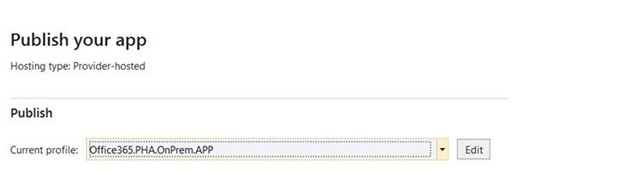
49. Click on “Package the APP” Button and Enter the URL
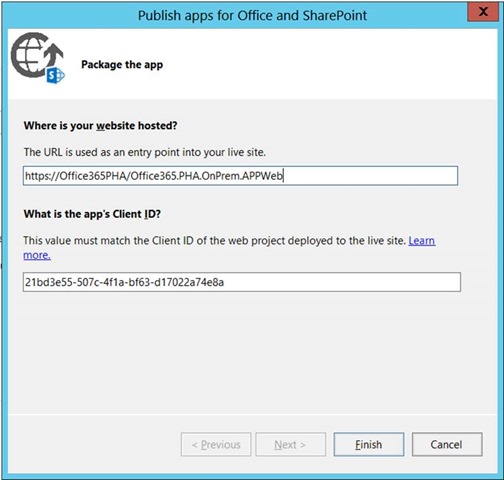
50. We will get the Publish Success message.

51. Go to App Catalog Site. Refer HERE for further information regarding App Catalog
52. Upload the APP file into the App Catalog “Apps for SharePoint” List.
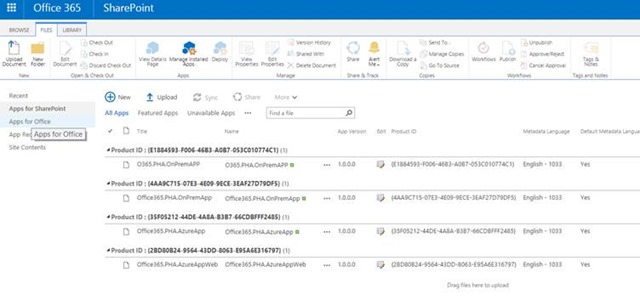
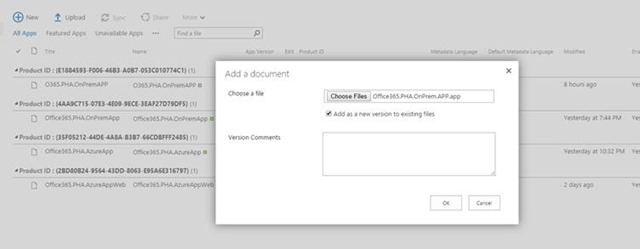
53. Now, come back to our Developer Site and go to Site Contents.
54. Click on “ADD an APP”
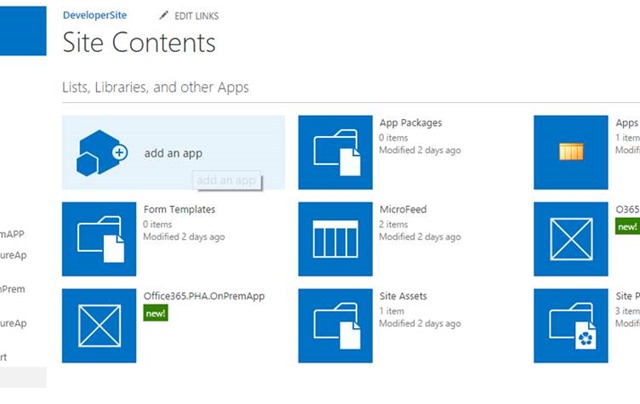
55. Select the APP
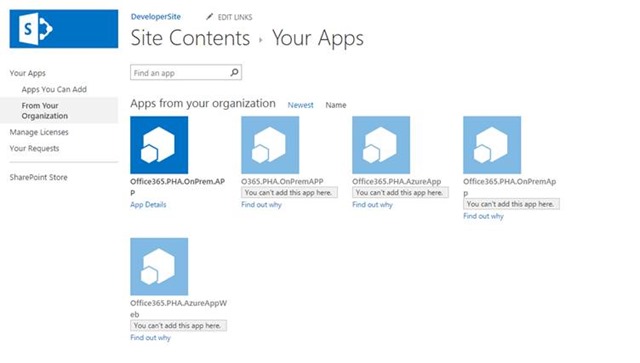
56. Trust the APP
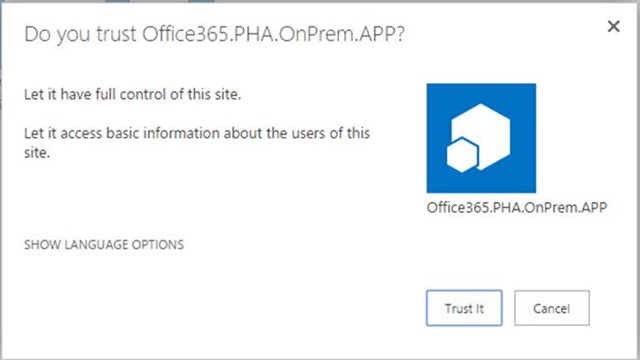
57. This will take few minutes to Add the app.
58. Launch the APP
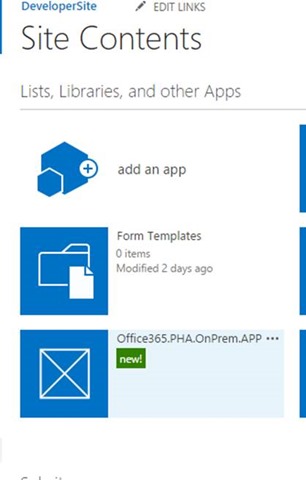
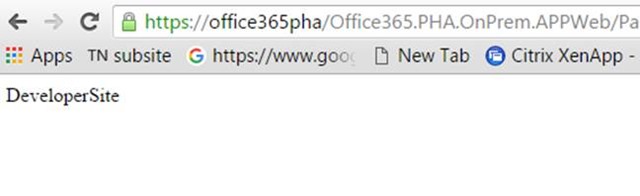
59. We will be seeing the Title of the SP Site.
60. Now, let us put a break point on your Source Code and attach the process with W3WP Process.
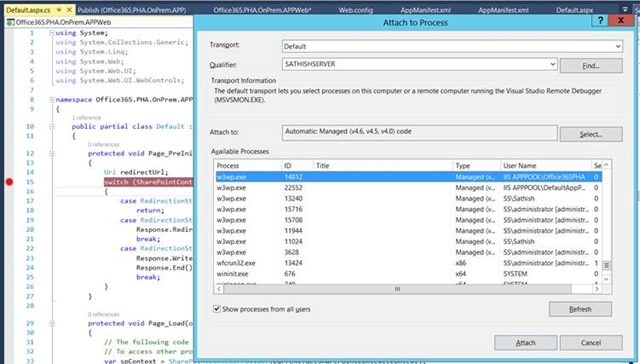
61. We can see the Debugger stops as shown below.